
Connections
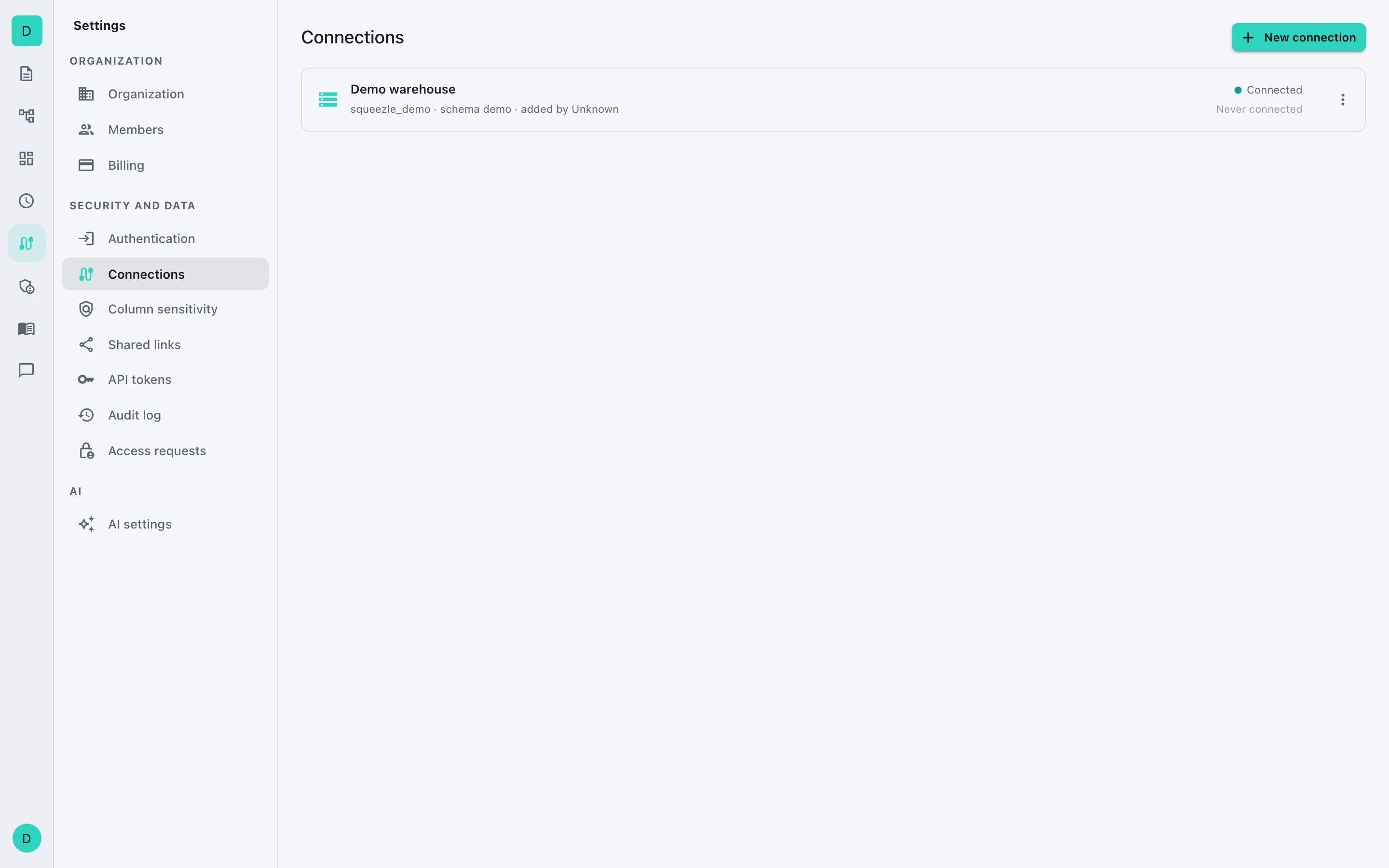
A connection is a saved pointer to one PostgreSQL database that queries run against. It holds the connection details plus per-connection safety limits, and shows the database's live health.
Connections are managed by administrators. You need the Manage connections capability to add or edit them.
Who can use a connection
A new connection is open to owners and admins only. Every other member has no access until an admin gives it to them. Open the connection's ⋮ menu and choose Manage access, or click the connection and open the Access tab. There you set the Default access and each member's access: Inherit default, No access, Run or Editor.
- Run lets a member run saved queries on the connection, and rename, move and delete them. It does not let them change the SQL.
- Editor also lets them write and save SQL on the connection.
- A member's role is the most they can get, so a Runner or Viewer never gets more than Run. Owners and admins always have Editor.
See give a teammate access to a connection.
When to use
An administrator adds a connection before anyone in the organization can write or run queries against that database. You edit a connection to change its credentials or limits, and refresh its cached schema when the database structure changes.
Add a connection
- Go to Admin → Connections and choose New connection.
- Fill in the connection details:
- Name and an optional Color to tell connections apart at a glance.
- Hostname, Port (default
5432), Database, and Default schema (defaultpublic, where the schema browser and autocomplete start). - Username and Password.
- SSL mode, one of
disable,prefer,require,verify-ca, orverify-full. - Statement timeout (default
30000ms), Row limit (default1000rows), and Result size (default10MB). These caps protect the database and keep result sets manageable. - Enable query advisor, on by default. It shows query-quality hints.
- Click Test connection to check the settings. On success you see a summary
such as
Connected · PostgreSQL 14 · user@db. On failure you see the API's error, and the form marks the offending field where possible. - Click Save.
Connection health
A connection's status updates live and is one of:
- Connected. The pool is open and serving queries.
- Ready. No pool is open yet; one starts on the first query. This is the normal resting state, not a fault.
- Error. The last connection attempt failed; the row shows the error.
- Disabled. Switched off; no queries will run against it.
To rebuild a connection's cached schema (after tables or columns change), open the row's ⋮ menu and choose Refresh schema.