
Queries and results
The workbench is where you write SQL, run it, and read the results. Each open query is a tab; the editor is Postgres-aware, and results appear in the pane beside it.
The editor
The editor gives you autocomplete and hover documentation from the connected
database's schema, plus live error markers from a real Postgres parser. Type to
get suggestions; . and { trigger them too.
- Choose the connection. The toolbar shows the current connection as a colored dot and name. To change it, click the gear icon (Query settings) and pick a different Connection. A new draft defaults to the first available connection.
- Saving is automatic. There is no Save button. The query autosaves shortly after you stop typing. The toolbar's save indicator reads Saving…, Saved, Unsaved changes, or flags a conflict if someone else edited the query, with a Review button.
- Name a query by double-clicking its tab title. Naming a new draft saves it as a private query.
- Version history. Click the history icon (Version history) to see past versions with their author, and Restore any of them. A restore writes forward as a new version, so it is always undoable.
If you cannot edit a query (you lack the capability, or it is not shared with you for editing), the editor opens read-only.
Running queries and reading results
Run the current SQL with the Run button or Cmd/Ctrl + Enter.
What you can do with a saved query also depends on your access to its connection. With Run you can run it, but you cannot change its SQL, and the editor tells you so. With No access you can open it, but you cannot run it. An admin sets this under Admin → Connections; see give a teammate access to a connection.
- The Run button's label reflects what it will do, for example Run (limit 1,000) or Run statement (limit 1,000) when the editor holds more than one statement and only the statement under the cursor runs.
- The caret next to Run opens Run settings: Run all statements (off by
default, so only the statement under the cursor runs) and Limit with a
Rows field. The default row limit is
1,000; unchecking Limit lifts it to the connection's ceiling (up to100,000). - Runs are asynchronous: the results header shows a live status line such as Success · 12 rows · 1.2s, and a spinner while a run is in flight. Use Cancel to stop a run that is still going.
- The results pane has Data, SQL, Chart, Export and Plan tabs. The Data grid is sortable and paginated (25 / 50 / 100 rows per page). A result truncated at the row limit says so.
Reading the query plan
The plan shows how Postgres runs your query: which tables it reads, how it joins them, and where the time goes. Click Explain next to Run to open it in the Plan tab.
- Estimate the plan (the Explain button) asks the planner for its plan without running the query. The numbers are the planner's guesses. Each person can ask for a set number of estimates a minute, depending on your plan. Past that, the Plan tab tells you how long to wait.
- Measure the plan (the caret next to Explain) runs the query with
EXPLAIN ANALYZEand shows real times and row counts. The query runs in full, like any run, with the same timeout. Anyone who may run the query may measure it, runners included. - What to look at lists the steps worth your attention, worst first: where most of the time goes, a row estimate that is far off, a full read of a large table that keeps few rows, and a sort or hash that ran out of memory and used disk. Click one to select its step.
- The steps are a tree, one row per step. Click the arrow to fold a branch. The bar shows each step's share of the time (or cost, rows or buffers), and the panel beside it has the full details of the selected step.
- Copy JSON copies the plan, for another tool or a colleague. Paste reads a plan from anywhere, as text or JSON, for example from psql. A pasted plan stays in your browser.
A result that is itself a plan, because you ran an EXPLAIN yourself, opens in
the Plan tab too.
When you change the SQL, a variable value, the statement under the cursor or the connection after a plan was made, the Plan tab says the plan is for an earlier version of the query. Click Re-plan (or Measure) above the plan for a fresh one. A pasted plan is never marked.
Variables
Variables turn a query into a form. Reference one in SQL as {{name}} (a date
range binds as {{name_start}} and {{name_end}}), and whoever runs the query
supplies a value in the Variables bar above the editor. No SQL editing
needed.
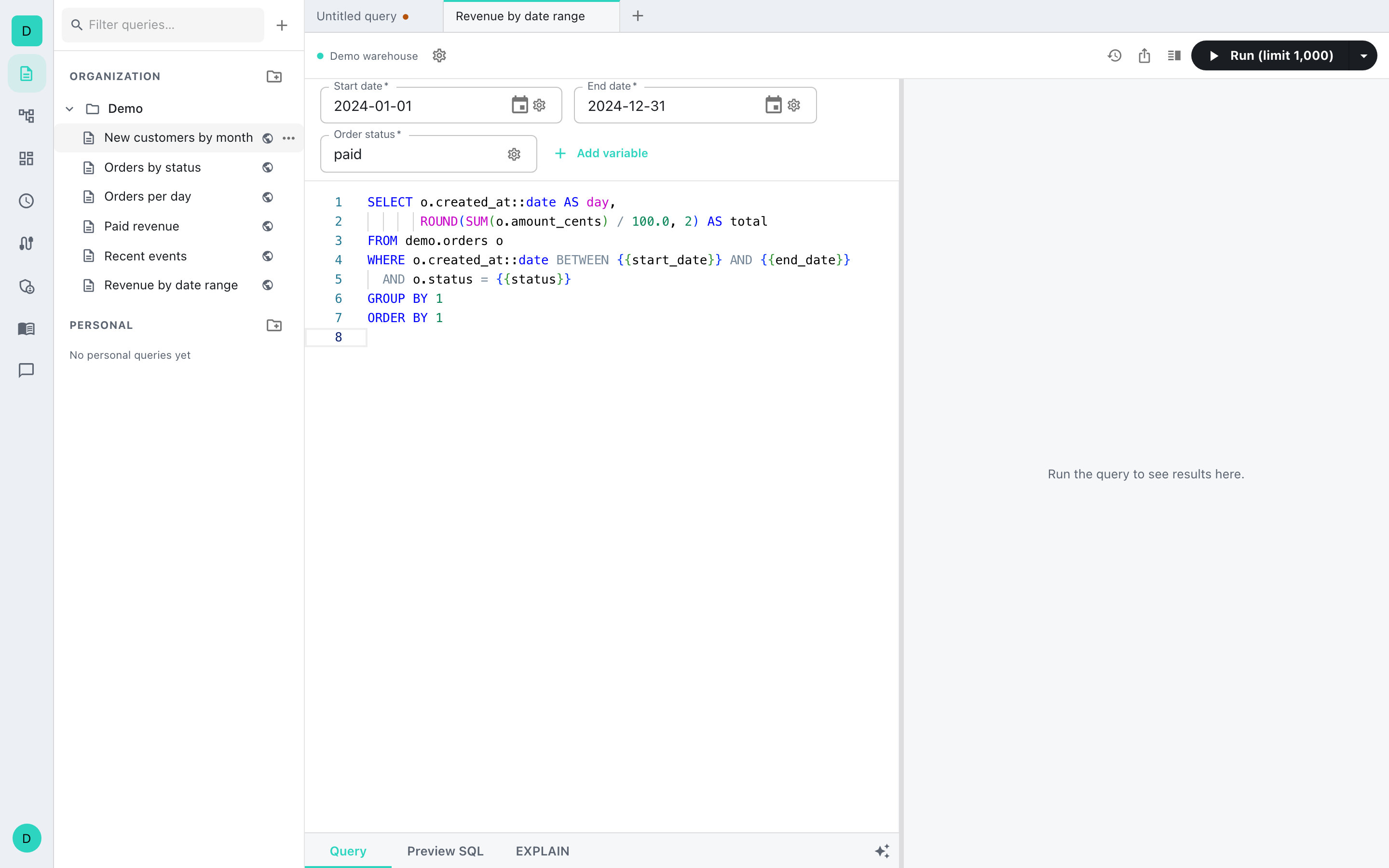
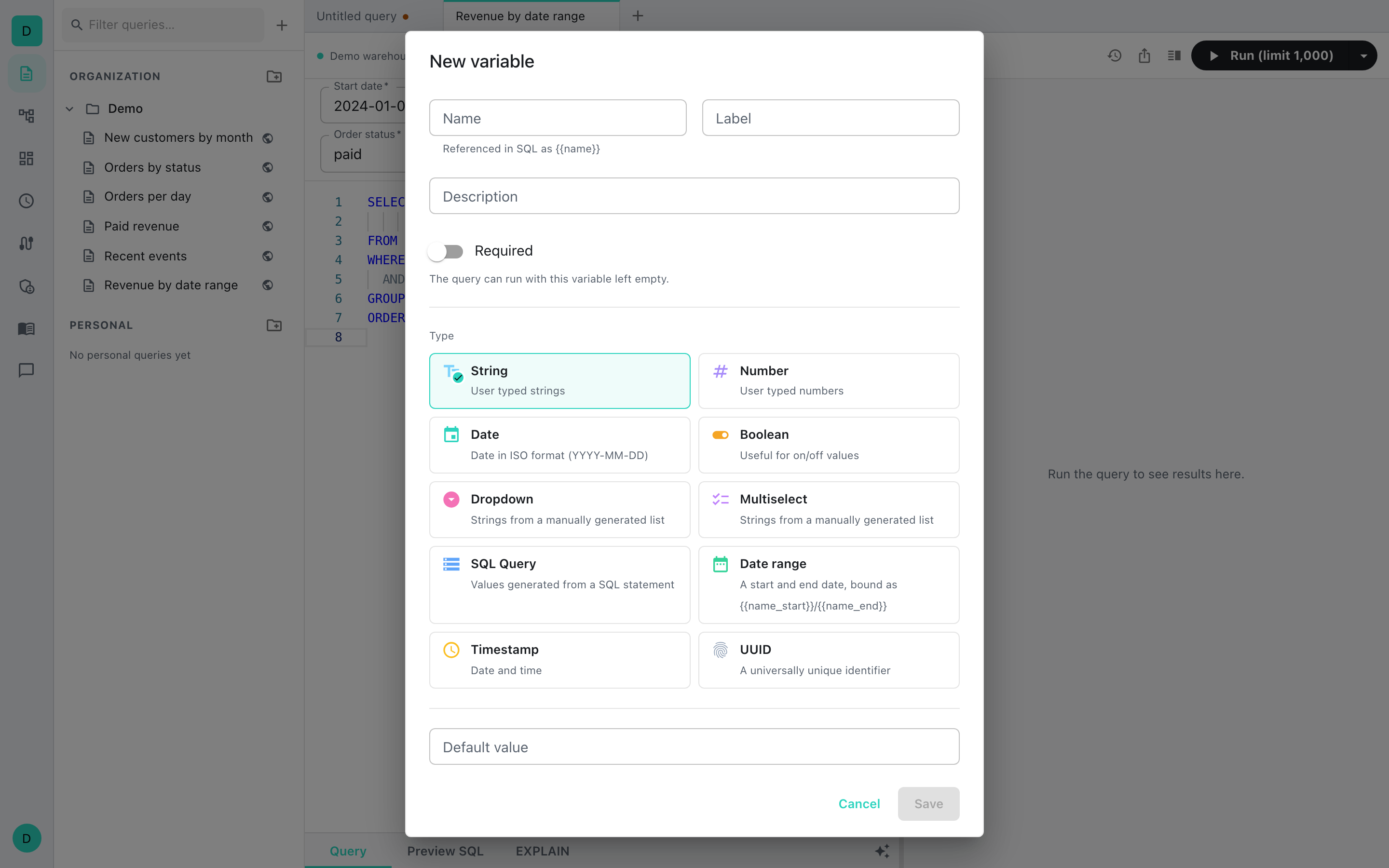
To define a variable, click Add variable in the Variables bar. In the editor dialog you set a Name, Label, Description, whether it is Required, its Type, a Default value, and per-type validation. The ten types are:
- String, Number, Date, Boolean
- Dropdown and Multiselect (choose from a fixed list)
- SQL query (options generated by a SQL statement, searched as you type)
- Date range (a start and end date)
- Timestamp and UUID
Supplying a value only needs permission to run the query; changing a variable's definition needs the Edit variables capability, so a runner sees the inputs but not the definition controls.
Exporting results
The Export tab downloads the full result set of a successful run, not just the page on screen. Choose CSV, JSON, or Excel (.xlsx). The export runs server-side and downloads from a short-lived signed URL, opened in a new tab.